
Enable All Apps – Windows Store Localizations
Windows 8 Store just like any other App stores has apps in various languages and localizations. When you install Windows in international language, Windows defaults to your country or regional settings. This is what we call Localization. This can be an advantage or a disadvantage depending on who is looking at it. A person who doesn’t care about English or American software may just want to see Apps made for his particular neck of the wood, so Windows Store defaults to Localized settings when you installed a Localized version of Windows.
But if you are a Geek, your life is on the Net and you don’t want to be limited to local Apps only, that is where frustration begins. There are more Apps in English than Localized versions, but if you installed Localized version of Windows you wont see all those Apps. Luckily Microsoft thought of people like you. There is a settings in Windows 8 Store to allow you to see All Apps in the Store, except for those specifically banned for your Region.
To Disable localization in Windows 8 so you can see all Apps available to you, please follow these simple steps:
- Open the Windows Store
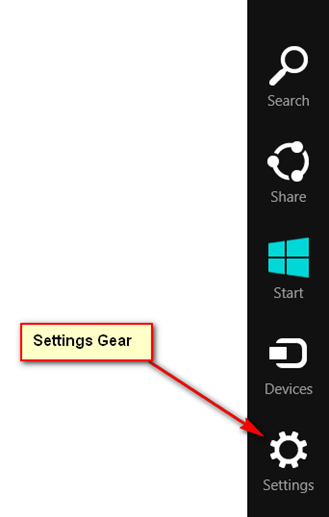
- While in the Store, open Windows Charm and click the Settings gear
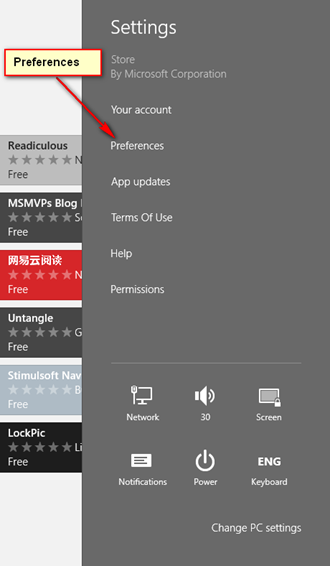
- Select Preferences
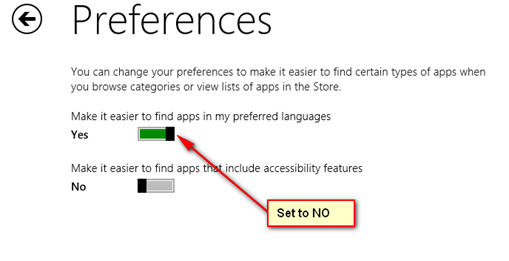
- Set “Make it easier to find apps in my preferred languages” to NO
Close Settings and revert back to the Store and search for the app you want. If the App is not banned for your region you’ll now see every Apps in the Store.
[IMPORTANT NOTE]: If you are still running former versions of Windows 8, you will not see all the Apps in the Store no matter your localization settings. You need to Install Windows RTM to see most of the Apps mentioned in this blog.
[Another Important Note: 2012-12-02] Despite this Localization Settings you will still not see Apps that are Locale-fixed. Those are Apps that are fixed to a particular country or region, if you don’t come from that region you will still not see those apps no matter what your localization settings. You will have to live in that country, i.e. you computer IP Address has to originate from that country or region to see those Apps. Sorry, I didn’t expect this myself. There is this TVCatcher app that was UK Locked because it only shows UK TV Stations anyway. I wanted to blog this App for our UK friends, but I can’t get to the App, and I have my localization settings already on Global view and still can’t get it. So now you know, we can still be locked out if we don’t live in a particular country. Just saying.
[For daily and regular Windows 8 Store News, follow my Twitter stream on: @McAkins]

Thanks, for a month there i thought the windows store had only like 20 apps :/
I don’t have any settings in the charm just Chang the wallet pin code
Are you running Stock Windows 8 or you’ve installed those Start Menu replacements that bring the old Windows 7 back? Because some of them disables the Charm functionality. If you are running default Windows 8, reach me on Twitter: @McAkins so I can help you out.
I can’t get to this setting’s please anyone help me please
Have you followed the steps as detailed here above. It should be a straightforward process. Run though it with attention and let me know if you succeed or not.
It solved my problem.
A search for “Citrix” showed NO apps… until your suggestion.
Changing your region in (search for-settings-” region”) allows you to download the apps locked put of you’re country. Unfortunately you may not be able to use those apps. Hulu plus for example, isn’t available out side usa. Change region, you can install it but you are unable to use it. I recommend pinning the region setting for the power user, to the start screen. And getting a larger app store them before. Australia gets a teeny tiny store, so I sit in USA based region, and change when I need an Australian based app. (especially games).
Oh WOW thank you for showing me how to search in the Windows 8 store. I thought, ‘wow are you serious? Microsoft didn’t think to make a search function in their store??’. This just made my day, I LOVE Window 8. I have Ubuntu 12.04, Windows 7, and I Can say, Windows 8 just made it happen and surpassed em all
this is very very usefull , 1 month i’m search my problem, my application just 55 apps, after following this step, AWESOME… all apps, show 2899 apps.. THANKS
Another example of a region locked app is Nook. Here in the UK it does not appear in the marketplace. Big bummer as there isn’t an easy way to view Dark Horse Comics on Windows 8.
You can temporarily set you Locale to US in Control Panel to install it, then set back to UK thereafter. The App will continue to function after install, I can’t say though for content you get.
Hey I’ve sorted out exactly how it works
the store localize your apps according to your home location, which can be set in the control panel:
Clock, Language and Region -> Region -> Location and set your location there
I’ve tried it out quite a number of options there and the store immediately reloaded and became different, showing apps are localized
That helps me to download Microsoft Minesweeper, which is not available in my region.
That is exactly the point, the moment you set your location in Control Panel to a particular Locale, you’ll be missing out on Apps that are locked for your Locale.
There two type of Apps Availability. When a Dev submits an App for publication in the Store, he has to give up whether the App is generally available to all countries of World or it should be available to certain Countries.
If your app is set for a particular country, even setting this Settings I mentioned in this post will not help you. You have to come from the App’s country or specifically set your locale to the same country to see the App. I will write another post to clarify this all.
If you want to see other stores, just change the locale on your device (assumes you are using a device aka slate).
Thank you!
Pingback: Pro tip: Show “missing” Apps in Windows Store | Lasse Christiansen Development
There is a more selective way to see apps in other languages and filter apps in languages you do not understand: follow steps 1 and 2. Instead of step 3 select ‘change PC settings’. In the left menu select ‘general’. On the right side of the screen select ‘language preferences’. Windows will now go into the desktop environment and opens a window. Select ‘add language’. Find the language you wish to see apps in and double click. Repeat if desired. Return to the start screen/windows store. You will now see more apps.
I think you misconstrued the purpose and intent of this post. This post is only meant to activate visibility of Localized apps in the Store, or if you live outside of US, to allow you to see all English Apps in the Store. Your comment here above is to add multiple languages support to Win8 environment which definitely is not the intention of the post. The post is to configure the Windows Store and not to configure Windows 8.
No, I did not. The store uses these languages to select the apps you’re able to see.
I just did what cale said. I added support for USA english and I got the full catalog of apps on my store, however the store remains in my windows native language that is spanish which I love since I am not the only ne whom uses this computer so this will not affect other users interface.
Mcakinsis right. im trilingual and have 3 languages set up, but i had to follow this great guide to see the majority og the win store cause i was limited to something like asia-pacific or something regardless of what language the apps were written in
Thank you…
Why is there no search function in the Store? Would make life a lot easier than having to shift thru all categories etc.
LoL, there is actually integrated Search in the Store. It uses the Universal Search function of Windows 8. Open any application in Windows 8, including the Store App, bring up the Charm, select the Search Charm, enter your search keyword, press enter. Pronto!
It takes a bit of getting used to, but once you’re used to it, you’ll appreciate Universal Search in Windows 8. Let me know if you still have problems.
Pingback: Windows 8 - Page 57
Pingback: The Windows Store Guy is Here WindowsObserver.com
Thankyou So much